 blog
blog
Music Mixing Software: 7 Best DAWs for Every Producer
Table of Contents
- Music Mixing Software vs. DJ Software: What's the Difference?
- Free Music Mixing Software: What You Get and What You Give Up
- Music Recording Software for PC: Windows-Compatible DAWs
- The Song Mixing Workflow: From Raw Tracks to Final Mix
- Choosing the Best DAW for Beginners: A Decision Framework
- Side-by-Side Comparison: Music Mixing Software by Use Case
- Conclusion
- Frequently Asked Questions
Last Updated: October 17, 2026
Music Mixing Software vs. DJ Software: What's the Difference?
Music mixing software is a digital audio workstation (DAW) for recording, editing, and shaping multitrack recordings into a finished song. DJ software blends pre-recorded tracks live. They solve different problems, and confusing the two is the most common reason beginners buy the wrong tool.
A DAW gives you unlimited tracks, plugins, EQ, compression, and automation for sculpting a mix. DJ software gives you two or more decks, a crossfader, sync controls, and effects for seamless transitions in front of a crowd.
The distinction dictates your workflow: recording vocals and arranging instruments requires a DAW; playing other people's records at a venue requires DJ software. Some producers use both, but they serve separate stages of a career.
Free Music Mixing Software: What You Get and What You Give Up
Free music mixing software is genuinely capable in 2026, but every free tier has a ceiling. The question is whether its specific limits will block you before your project is finished.
Here is what the most commonly recommended free options actually include and where they stop:
| Free Tool | Platform | Core Strengths | The Real Ceiling |
|---|---|---|---|
| GarageBand | macOS, iOS | Full multitrack recording, virtual instruments, amp models | Mac-only; limited third-party plugin support; no VST3 |
| Cakewalk by BandLab | Windows | Full DAW feature set, VST3 support, unlimited tracks | Windows-only; requires BandLab account; development pace has slowed |
| Reaper (unlimited evaluation) | Windows, macOS, Linux | Full feature set, tiny installer, deep routing | Not technically free, a license is expected after the evaluation period |
| Audacity | Windows, macOS, Linux | Fast audio editing, cleanup, format conversion | Destructive editing model; weak MIDI; not a true multitrack mixing environment |
| Waveform Free | Windows, macOS, Linux | Unlimited tracks, VST support, flexible routing | Fewer bundled instruments and effects than the paid tier |
| Ardour | Windows, macOS, Linux | Open-source, full multitrack, plugin hosting | Steep learning curve; setup requires more technical comfort |
What you typically get for free across these tools:
- Full multitrack recording and editing
- Core effects: EQ, compression, reverb, delay
- MIDI support and at least basic virtual instruments
- Export to standard audio files
What you usually give up:
- Track count caps on some entry-level tiers (GarageBand and Waveform Free are generous; mobile and lite tiers are not)
- Restricted plugin formats, GarageBand does not host VST3, which rules out a large share of third-party mixing plugins
- Watermarked or limited export options on certain mobile and trial tools
- Advanced automation, sidechain routing, and surround features reserved for paid tiers
- Bundled plugin libraries that shrink dramatically compared with the paid version
A common mistake is starting a serious release on a free tier without checking export rules first. Many producers find the mix sounds right, then discover the export is limited or the session can't be reopened after a trial ends. Check export and licensing terms before committing hours to a session.
Most free-vs-paid comparisons stop short on total cost. A free DAW isn't free if it forces a plugin suite purchase to cover missing formats, or a track cap pushes you into a paid upgrade mid-project.
Music Recording Software for PC: Windows-Compatible DAWs
Music recording software for PC has never been more competitive. Windows users can choose fully featured DAWs that match macOS options feature for feature, and hardware compatibility is rarely the bottleneck it once was, provided you check the right things before you install.
The main Windows-compatible DAWs and what each is actually good at:
| DAW | Best For | Plugin Formats | Notable Windows Considerations |
|---|---|---|---|
| Ableton Live | Electronic production, live performance | VST3, VST2, AU (Mac) | Excellent low-latency performance; Session View suits loop-based work |
| FL Studio | Beatmaking, hip-hop, EDM | VST3, VST2 | Lifetime free updates; pattern-based workflow differs from linear DAWs |
| Cubase | Composition, scoring, large sessions | VST3, VST2 | Strong MIDI editing; dongle-free licensing since recent versions |
| Studio One | Singer-songwriters, fast workflow | VST3, VST2, AU (Mac) | Drag-and-drop arrangement; tight integration with PreSonus interfaces |
| Reaper | Budget-conscious power users | VST3, VST2, CLAP | Very small installer; deep routing; generous evaluation model |
| Pro Tools | Professional studio and post work | AAX (VST via wrapper) | Industry standard for collaboration; subscription-based |
| Cakewalk by BandLab | Free full-featured option | VST3, VST2 | Windows-only; requires BandLab account |
When evaluating Windows-compatible DAWs, check these criteria in order:
| Criteria | What to Verify | Why It Matters |
|---|---|---|
| Audio driver support | ASIO compatibility; vendor ASIO driver vs. ASIO4ALL | Low-latency recording and stable playback |
| Plugin formats | VST3 and VST2 support; CLAP on newer hosts | Access to third-party mixing tools |
| Hardware | Audio interface drivers and firmware | Stable input/output; fewer dropouts |
| System load | CPU cores, RAM, and disk speed | Session stability at low buffer sizes |
| Export | Bit depth and sample rate options | Distributor compliance |
Performance is where Windows setups diverge most. A modest machine can run a large session smoothly with efficient plugins and frozen heavy tracks.
Practical performance guidance:
- RAM: 16 GB is a comfortable working baseline for multitrack sessions with virtual instruments; 8 GB is workable for audio-only projects but tight once samplers load.
- CPU: Modern multi-core processors handle large sessions well; single-core speed still matters for low-latency monitoring.
- Storage: Keep sample libraries and active sessions on an SSD. Spinning drives cause dropouts during streaming playback.
- Buffer size: Lower buffers reduce monitoring latency but raise CPU load. Track at a low buffer, mix at a higher one.
- Freezing: Freeze or bounce heavy virtual instrument tracks to audio once the part is final. This is the single biggest stability win on modest hardware.
Compatibility isn't only about the operating system. Confirm your audio interface, MIDI controller, and any control surface have current drivers for your Windows version before committing to a DAW, and check that it supports your existing plugin formats. A DAW that can't host your plugin library is a poor fit regardless of its feature list.
The Song Mixing Workflow: From Raw Tracks to Final Mix
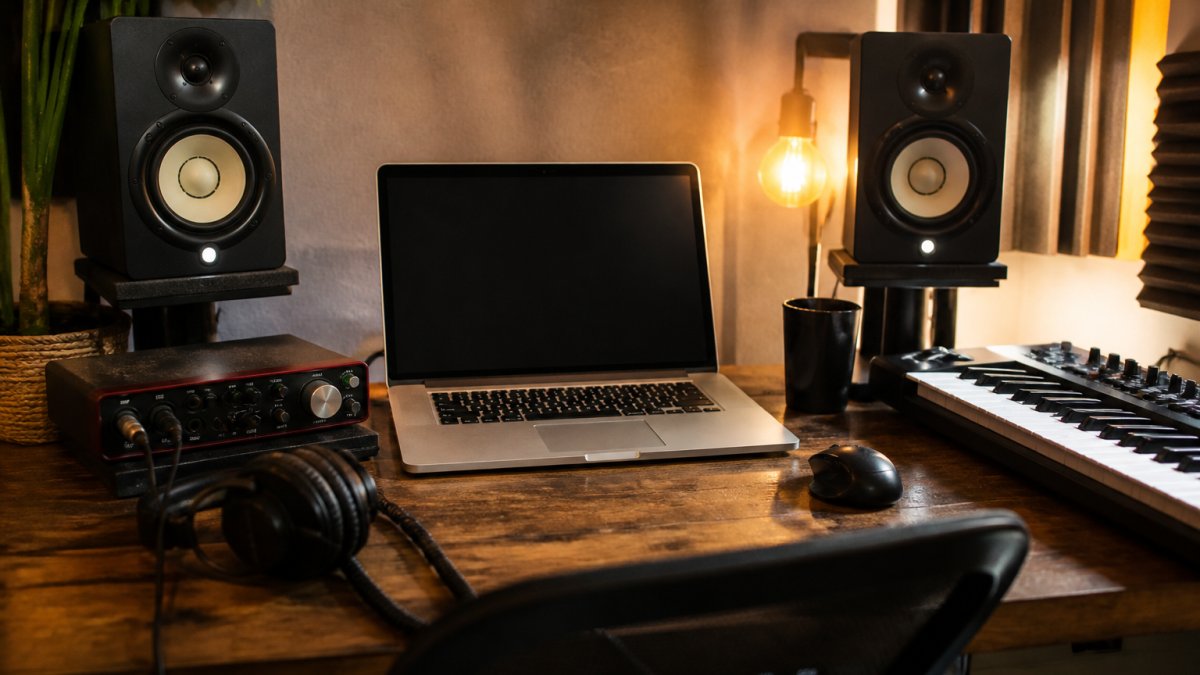
A song mixing workflow is the repeatable sequence that takes raw recorded tracks to a balanced, release-ready mix. Following the same order every time separates consistent results from guesswork.
Here's the workflow we recommend:
- Organize and clean. Label every track, remove noise, and check for clicks and hum before touching a fader.
- Set levels. Build a static balance with faders only, no processing.
- Subtractive EQ first. Cut problem frequencies before boosting anything.
- Compression. Control dynamics on vocals, drums, and bass to stabilize the mix.
- Additive EQ and saturation. Shape tone and character.
- Effects and space. Reverb and delay to place elements in a room.
- Automation. Ride levels and parameters to keep the mix moving.
- Reference and check. Compare against commercial tracks on multiple systems.
Mixing in this order prevents the classic trap of stacking plugins to fix problems a simple level change would solve. Sound quality comes from decisions, not plugin count.
Choosing the Best DAW for Beginners: A Decision Framework
The best DAW for beginners matches your primary task and your computer, not the longest feature list. Use this framework to decide in one sitting.
Step 1: Define your main task.
- Recording live instruments and vocals → prioritize audio editing and low-latency recording
- Beatmaking and electronic production → prioritize MIDI, sampling, and virtual instruments
- Podcast and spoken-word editing → prioritize cleanup tools and simple export
Step 2: Match your platform. Confirm native support for Windows or macOS, plus your audio interface.
Step 3: Check the learning curve. Look for a demo or free tier. If you can't record a test track in an hour, the workflow may fight you.
Step 4: Budget for total cost. Factor in the DAW, plugins, and any subscription. A cheaper DAW with paid add-ons can cost more over two years than a single purchase.
Step 5: Confirm export quality. Verify bit depth, sample rate, and file format meet distributor requirements.
If mixing still feels like the bottleneck after you've chosen a DAW, that's a signal to bring in outside help. Slick Sound Productions handles professional mixing, mastering, and audio clean-up for artists who'd rather spend their hours creating.
Side-by-Side Comparison: Music Mixing Software by Use Case
Comparing music mixing software fairly means using the same criteria across every option. Here's how the main categories stack up by use case, so you can match a tool to your situation rather than a marketing page.
| Use Case | Best Category | Key Features | Watch Out For |
|---|---|---|---|
| Home-studio recording | Full DAW | Multitrack audio, ASIO/VST3 | CPU load on large sessions |
| Beatmaking | DAW with strong MIDI | Virtual instruments, sampling | Limited audio editing depth |
| Live performance | DJ software | Decks, sync, effects | Cannot record full productions |
| Podcast editing | Lightweight DAW | Cleanup, leveling, export | Fewer mixing tools |
| Budget start | Free DAW tier | Core recording and effects | Export and track limits |
| Fast release prep | Professional mixing service | Vocal tuning, mastering | Turnaround scheduling |
The gap most roundups miss is the last row. Software gives you tools, not ears or time. Independent artists on a deadline can benefit from professional mastering services, keeping creative control while ensuring the final file passes distributor technical checks.
Conclusion
Picking music mixing software is really a decision about workflow, platform, and how much mixing you want to do yourself. Get those three right and the tool choice becomes obvious.
When the mix needs to be release-ready and the deadline is tight, Slick Sound Productions delivers professional mixing, mastering, and audio clean-up with fast turnaround, reliable communication, and free revisions included. We also provide multiple sample rates and alternative versions, so your track meets distributor standards the first time. Book now and get your music release-ready.
Frequently Asked Questions
What is the best free music mixing software for beginners?
For beginners, free music mixing software like GarageBand (Mac) or Cakewalk (Windows) offers a full DAW experience without cost. These tools include multitrack recording, EQ, compression, and virtual instruments. The main trade-offs are limited plugin libraries and fewer advanced features, but they are ideal for learning the song mixing workflow. Once you outgrow them, you can upgrade to paid versions or use professional mixing services to finalize your tracks.
Can I mix vocals and instruments with free software?
Yes, free music mixing software supports vocal and instrument mixing. You can record or import audio tracks, apply EQ, compression, and effects, and balance levels. However, free versions often restrict the number of tracks, plugin formats, or export options. For release-ready quality, artists may use free tools for initial arrangement and then send stems to a professional mixing service for final polish.
What features should I look for in music mixing software?
Look for multitrack recording, a mixing console with faders and panning, built-in EQ and compression, automation, and support for third-party plugins (VST/AU). Also check compatibility with your OS (macOS or Windows), audio interface support, and export options. For beginners, a clear learning curve and included virtual instruments help. If you plan to collaborate, project portability and cloud saving are worth considering.
How do I know if my mix is ready for distribution?
A distribution-ready mix should have balanced levels, controlled peaks (typically -1 dB true peak), and consistent loudness (around -14 LUFS for streaming). Use a metering plugin to check. If you lack confidence, a professional mixing and mastering service can ensure technical standards are met, avoiding rejection from distributors. Many services offer free revisions and alternative versions to match your creative vision.